Client Portal
From Booking to Report: What Happens in the Client Portal
Once an inspection is booked, everything about it lives on one booking page in your client portal: the payment, the confirmed date, the files you send the inspector and, finally, the report. You do not need to search your inbox for a PDF or ask which version is final. This guide explains what happens at each stage and what you can do yourself along the way.
- Paying for a booking, and how to pay safely
- How the date is confirmed and what to send the inspector
- How reports are delivered, numbered, checked and kept
Your Dashboard
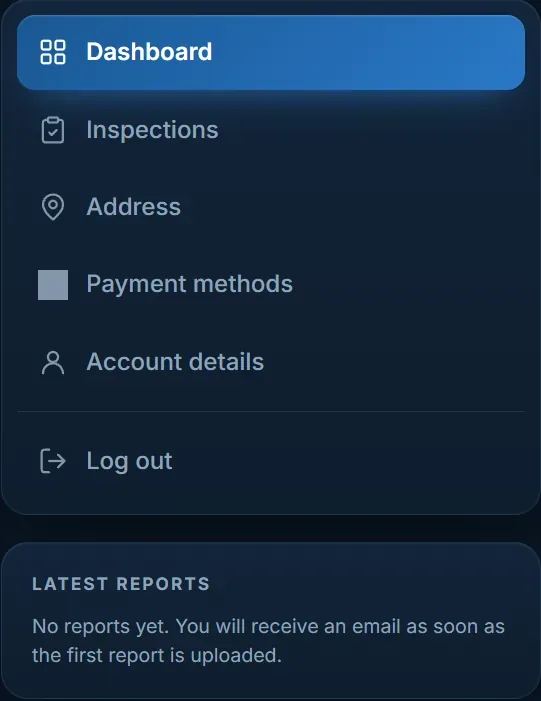
After logging in you land on your dashboard. It shows the bookings in progress, your latest reports and your balance of prepaid inspector-days, and lets you start a new booking straight away. The menu leads to all your inspections, which can be filtered by period, your saved addresses, your payment methods and your account details.
Paying for the Booking
You choose how to pay in the last step of the booking. PayPal is confirmed at once. For a bank transfer, send USD by SWIFT, CHATS or FPS with your booking number in the payment reference, then upload the receipt on your booking page. An invoice for your accounts team can be downloaded straight away. If you hold prepaid inspector-days, the booking is paid from your balance and goes directly to scheduling.
SSTI never changes its bank details by email or chat. Pay only to the account shown in the portal and in our confirmation email. If anyone asks you to pay elsewhere — even in a message that looks like ours — contact us before paying.
Date Confirmation and What to Send the Inspector
As soon as the payment arrives, we agree the inspection date with the factory and email you, normally within one working day. The booking page always shows where things stand: awaiting payment, confirming the date with the factory, scheduled, inspection in progress, or completed.
Once the date is set, upload your checklist, drawings or approved-sample photos on the booking page so the inspector can follow them. If you have a question about the booking, send it under “Documents & messages” on the same page, so the whole history stays together.
Receiving Your Report
After the inspection the report is uploaded to your booking page — usually the same day, or the next morning — and you receive an email. Reports are never sent as email attachments: only you can download them, after logging in. That keeps a confidential document about your supplier out of forwarded email chains.
Every report has its own number, made up of the booking number and a sequence, for example SSTI-2026-0001-R1. A booking that runs over several days can have several reports, all listed on the same page with the factory, product, inspection date and overall result. The Check a report box on your dashboard finds any of them by booking or report number.
Inspection Videos and Original Photos
The report contains the photos that support each finding. If you also want the inspection videos and the original, full-size photos — for your own customer, a claim, or your records — tick the option when you book. You can give a different email address for them, for example a colleague's; if you leave it empty, we use your account email.

How Long Reports Are Kept
Reports stay in your portal for three months. Download the ones you need to keep for longer; after that period, email us and we will send you a copy.
Changing or Cancelling a Booking
Plans at factories change. You can cancel any paid inspection up to one working day before the inspection date and we refund it in full, less only the actual bank transfer fee, within ten working days. Unused days of a five-day package are refundable in the same way. To change a date or cancel, send a message from your booking page, or reach us on WhatsApp if it is urgent.
New to the portal? Start with how to book an inspection online, step by step, and see how the sampling plan is set in setting your own sampling plan. What a good report should contain is covered in our guide to the pre-shipment inspection report.
Keep every inspection in one place
Bookings, payments, files for the inspector and every report, in your own client portal.
Open the client portal